
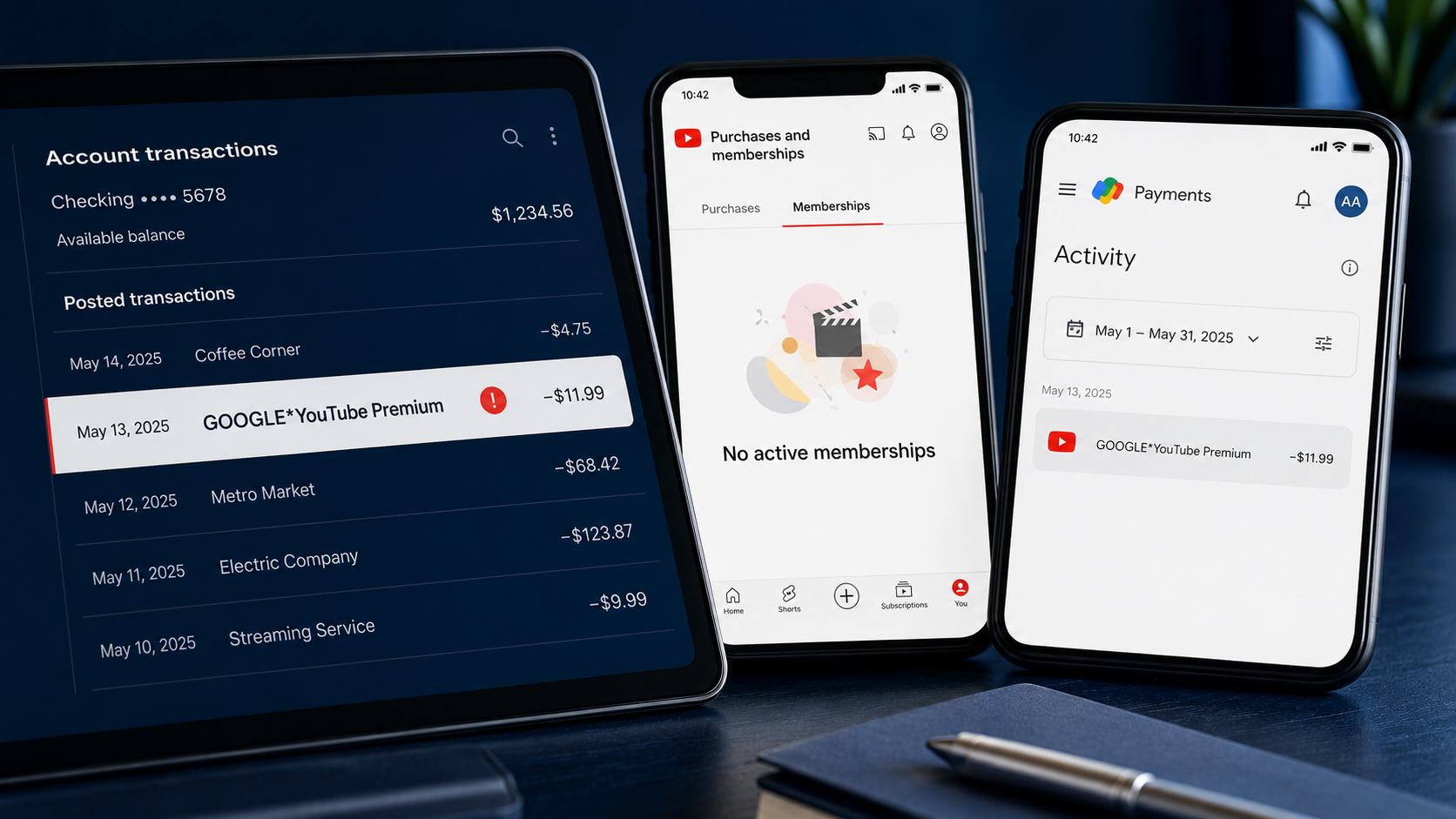
You check your bank statement and see a charge containing **GOOGLE*YouTube**.
You open YouTube, check your account and find no active Premium subscription. There is no obvious purchase, no clear receipt and no explanation for why money left your account.
That combination is frustrating, but the missing subscription does not automatically mean the charge is fraudulent.
YouTube processes more than Premium memberships. The charge may belong to YouTube TV, Music Premium, a channel membership, a movie, a Super Chat, another Google account or a purchase made by someone who had access to your payment method.
The fastest solution is to follow the billing route in the correct order.
Do not begin by guessing which service caused the charge. Start with the exact statement description, match the amount and date against every relevant Google account, and then decide whether you need to cancel, request a refund or report an unauthorized transaction.
Fast answer: A genuine YouTube purchase normally appears as GOOGLE*YouTube [service name]. Check YouTube Purchases, Google Payments Activity and Google Play order history using every Google account connected to your devices. If nobody you know made the purchase, YouTube provides an unauthorized-charge process.
First, copy the complete charge description
Open the transaction in your banking app or download the statement.
Write down:
- The complete statement description
- The amount
- The transaction date
- Whether it is pending or completed
- The card or bank account that was charged
- Whether the same amount has appeared before
- Any telephone number or website included in the descriptor
Do not publish your full card number, bank-account number or transaction reference online.
The exact wording matters. According to YouTube, its purchases appear on statements in the following format:
GOOGLE*YouTube [service name]
For example, YouTube says a YouTube TV transaction can appear as:
GOOGLE*YouTube TV
A description such as GOOGLEYouTube Premium, GOOGLEYouTube Music or GOOGLE*YouTube Member gives you an immediate clue about the type of purchase.
If the description does not follow YouTube’s stated format, YouTube advises contacting the bank or card issuer for more information.
Check YouTube’s official charge-identification instructions
Why a charge may exist when Premium shows no subscription
The most common mistake is checking only the YouTube Premium page.
A YouTube charge does not have to be a Premium subscription. YouTube’s paid products include several different purchase types.
YouTube Premium or Music Premium
A Premium or Music Premium membership renews automatically until it is cancelled.
The membership may belong to a different Google account from the account currently open in YouTube. This happens easily when a person has separate personal, work or older Gmail addresses.
YouTube TV
YouTube TV has its own membership and optional add-ons. Its charges may therefore appear separately from YouTube Premium.
A person checking only the standard YouTube Premium screen can miss a YouTube TV membership associated with another Google account.
Channel memberships
A channel membership is a recurring payment made to support an individual YouTube creator in exchange for membership benefits.
It is separate from YouTube Premium.
Open YouTube, select your profile picture, and visit Purchases and memberships. Review every channel membership listed there.
YouTube states that cancelling a channel membership stops future renewals. Membership benefits normally continue until the end of the existing billing period.
Manage or cancel a YouTube channel membership
Super Chats, Super Stickers and Super Thanks
These are payments made during or around creator content. They are not subscriptions and therefore will not appear as active Premium memberships.
The absence of a subscription does not rule out a one-time creator payment.
Movie and television purchases
YouTube sells and rents digital movies and television programmes.
These are individual purchases, not subscriptions. Check the Purchases section even when the Paid Memberships section is empty.
A trial or authorization hold
A temporary authorization can appear when YouTube checks whether a payment card is valid and has sufficient funds.
YouTube explains that an authorization hold is not an actual completed charge. Banks remove holds according to their own processing schedules.
Check whether the transaction is marked pending, processing or completed before requesting a refund.
YouTube also states that a person may be charged after starting a trial if the account was not eligible for that trial. Trial eligibility is therefore worth checking rather than assuming that every trial was free.
Read YouTube’s unexpected-billing guidance
Step one: Check YouTube Purchases and Memberships
Sign in to YouTube using the account currently open on your device.
Open:
YouTube Purchases and Memberships
Compare every listed item against:
- The amount on your statement
- The date of the transaction
- The renewal date
- The payment method
- The name of the membership or purchase
Look beyond Premium. Review channel memberships, movie purchases and other paid products.
If you find the matching purchase, open its details before cancelling anything. Confirm whether it is recurring or a one-time transaction.
Step two: Check Google Payments Activity
YouTube purchases made through Google can also be recorded in Google Payments.
Visit:
Open Activity to review individual transactions.
Then open Subscriptions and services to review recurring payments.
Google states that its Payments Center can show transaction history and help users manage ongoing subscriptions. This makes it an important second check when the item is not obvious inside YouTube.
Match the transaction using the amount and date. Do not rely only on the product name because the bank descriptor and the receipt description may differ.
Learn what Google Payments Center contains
Step three: Check Google Play order history
A YouTube purchase made on Android may have been processed through Google Play.
On an Android device:
- Open the Google Play Store.
- Select your profile picture.
- Select Payments and subscriptions.
- Open Budget and history.
- Review the listed orders.
On a computer:
- Visit Google Play.
- Select your profile.
- Open Payments and subscriptions.
- Select Budget and order history.
Google also allows you to review individual orders under Activity and subscriptions under Subscriptions and services at payments.google.com.
Review your Google Play order history
Step four: Repeat the checks on every Google account
This is the step that solves many apparently missing subscriptions.
A phone, television, tablet or browser can contain several Google accounts. YouTube may currently display one account while the payment belongs to another.
List every Google account that has been used on:
- Your current phone
- An older phone
- A smart television
- A streaming device
- A family tablet
- A shared computer
- YouTube Music
- Google Play
- YouTube TV
Switch to each account and repeat these three checks:
- YouTube Purchases and Memberships
- Google Payments Activity
- Google Play order history
In the YouTube mobile app, open your profile picture, select Accounts, and choose another account or channel.
Do not stop after checking different YouTube channels under the same Google login. Check the actual email address shown for each account.
Official instructions for switching YouTube accounts and channels
Step five: Search every email account for the receipt
Search your inboxes for:
- YouTube receipt
- YouTube Premium
- YouTube TV
- YouTube membership
- Google payment
- Google receipt
- The exact amount
- The date of the charge
- The last four digits of the charged card
Check spam, deleted messages and archived mail.
A receipt can identify the Google account and the specific product even when the current YouTube account shows no membership.
Do not trust links in unexpected emails without checking the sender and destination. You can access YouTube and Google Payments directly instead of following an email link.
Step six: Check whether Apple processed the purchase
Some YouTube purchases made through an Apple device are billed by Apple.
If the bank statement says APPLE.COM/BILL, ITUNES.COM/BILL or another Apple descriptor instead of GOOGLE*YouTube, investigate the charge through Apple.
Check:
- Settings on the iPhone or iPad
- Your Apple Account
- Subscriptions
- Purchase History
- Any additional Apple Accounts used on the device
YouTube states that it cannot grant refunds for purchases made through Apple billing. Those refund requests must go to Apple and are subject to Apple’s policies.
Read YouTube’s guidance for Apple-billed refunds
A YouTube charge billed directly by Google and a YouTube purchase billed by Apple are different billing routes. Send the request to the company that processed the payment.
Step seven: Ask the people who could have used the payment method
Before reporting fraud, check with:
- Your partner
- Children
- Other members of your household
- Members of a Google family group
- Anyone who uses a shared television
- Anyone who had access to the card
- Anyone using an old device where the card remained saved
Ask about more than Premium. Mention channel memberships, Super Chats, movies, YouTube TV and YouTube Music.
YouTube specifically recommends checking whether a family member, friend or child made the purchase.
If someone you know made an accidental purchase, use the appropriate refund process instead of reporting the transaction as unknown fraud.
If you find the subscription
Open the account that owns the membership and confirm the next billing date.
For YouTube Premium or Music Premium:
- Open your profile picture.
- Select Paid memberships or Purchases and memberships.
- Choose the membership.
- Select Continue to cancel.
- Choose a cancellation reason.
- Confirm the cancellation.
YouTube states that cancelling turns off automatic renewal. Benefits continue until the end of the billing cycle, and cancelling does not normally refund the unused time between cancellation and the end of that cycle.
Save evidence of the cancellation:
- Take a screenshot of the cancellation confirmation.
- Save the confirmation email.
- Record the cancellation date.
- Record the final access date.
- Check that the membership now says cancelled or ending.
Official YouTube Premium cancellation instructions
If you recognize the purchase but want a refund
Cancelling and requesting a refund are separate actions.
Cancelling stops the next renewal. It does not automatically reverse a completed payment.
YouTube’s refund rules depend on:
- The product purchased
- How it was purchased
- Whether the purchase was used
- The reason for the request
- Whether Google, Google Play or Apple processed the payment
For Premium and Music Premium, YouTube says users can request help when purchased features do not work. Approval is not guaranteed.
If a refund is approved, access to the paid benefits can end, and the money is returned according to YouTube’s refund timelines.
Read the YouTube Premium and Music Premium refund policy
For movies and television programmes, YouTube states that an unwatched item can be eligible for a refund request within seven business days. Purchases processed through Google Play must follow the Google Play refund route.
Read the official movie and television refund rules
If nobody recognizes the charge
Treat the transaction as potentially unauthorized only after checking:
- Every Google account
- YouTube Purchases and Memberships
- Google Payments Activity
- Google Play history
- Apple purchase history where relevant
- Family and household purchases
- One-time YouTube products
- The transaction’s pending or completed status
YouTube allows users to report qualifying unauthorized charges through its support process.
YouTube’s official instructions state that an unrecognized charge should be reported within 120 days of the transaction. Keep the email address used for the report and the claim ID issued afterward because both are needed to track the claim.
Report an unauthorized YouTube charge
You should also contact your bank or card issuer promptly when:
- The descriptor does not match YouTube’s official format
- You suspect the card details were stolen
- Several unknown transactions appeared
- More payment attempts are continuing
- You cannot connect the transaction to any account
- You need information that is not visible in online banking
Use the telephone number printed on the back of the card or your bank’s official application. Do not call an unverified number found in a forum comment or advertisement.
Proof checklist before contacting support
Prepare one clean evidence folder containing:
- A redacted statement screenshot
- The exact transaction description
- The charge amount
- The transaction date
- The card’s last four digits
- The transaction’s pending or completed status
- Screenshots of YouTube Purchases and Memberships
- Screenshots of Google Payments Activity
- The relevant Google email addresses
- Receipt-search results
- Cancellation confirmation, if applicable
- Previous support messages
- The unauthorized-charge claim ID, if already submitted
Redact the full card number, bank-account number, home address and unrelated transactions before uploading documents.
A clear record allows support staff to match the payment without requiring you to reconstruct the timeline later.
Common mistakes that delay the solution
Checking only YouTube Premium
Premium is only one type of YouTube payment. Channel memberships, Super Chats, films and YouTube TV also produce charges.
Looking at only one Google account
The account currently displayed in YouTube may not own the purchase. Repeat the checks with every Google account used on your devices.
Assuming every pending item is a completed charge
An authorization hold can temporarily reduce available funds without becoming a completed transaction. Check the status with your bank.
Deleting the YouTube application
Deleting an application does not cancel a paid membership. Cancellation must be completed through the billing account.
Removing the card but leaving the membership active
Removing a payment method and cancelling a subscription are different actions. Confirm the membership’s cancellation status separately.
Reporting fraud before asking household members
A purchase made by someone you know requires a different resolution from payment-card theft. Ask the people who could have used the card before submitting an unauthorized-transaction claim.
Requesting the refund from the wrong company
Google, Google Play and Apple operate separate billing routes. Follow the processor shown on the receipt and statement.
Discarding the cancellation confirmation
Keep the confirmation until at least the final billing period has passed and the statement shows no further charge.
A simple decision path
Use this order:
- **Does the statement say GOOGLE*YouTube?**
If no, contact the company named in the descriptor or your bank.
- Is the transaction pending?
Check whether it is an authorization hold.
- Does it appear in YouTube Purchases?
Open the item and identify whether it is recurring or one-time.
- Does it appear in Google Payments or Google Play?
Follow the billing route shown in the transaction details.
- Could another Google account own it?
Switch accounts and repeat the checks.
- Was it billed through Apple?
Use Apple’s subscription, purchase-history and refund systems.
- Did someone you know make it?
Cancel or request a refund through the correct processor.
- Does nobody recognize it?
Report it through YouTube’s unauthorized-charge process and contact the card issuer.
Frequently asked questions
What does GOOGLE*YouTube mean on a bank statement?
YouTube states that its purchases appear as GOOGLE*YouTube [service name]. The final part can identify the specific YouTube service.
The payment can relate to a membership, digital purchase or creator-support feature.
Why am I charged when YouTube says I have no subscription?
The payment may be attached to another Google account or may be a one-time purchase rather than a subscription. It can also relate to YouTube TV, a channel membership, a movie, Super Chat or another paid YouTube product.
Check YouTube Purchases, Google Payments and Google Play history for every Google account.
Is GOOGLE*YouTube always YouTube Premium?
No. YouTube Premium is only one of the products that YouTube bills. Other possibilities include Music Premium, YouTube TV, channel memberships, digital video purchases and creator-support payments.
Can YouTube charge through Apple?
Yes. YouTube explains that some purchases made through Apple billing are subject to Apple’s refund process. YouTube cannot issue those refunds itself.
Check the exact statement descriptor and receipt to identify the processor.
Can a YouTube channel membership cause a monthly charge?
Yes. Paid channel memberships renew until cancelled. They are different from YouTube Premium and must be checked under Purchases and Memberships.
Is a pending YouTube transaction an actual charge?
Not always. YouTube says an authorization hold can appear while a card is being validated. Ask the bank whether the transaction is a settled payment or temporary authorization.
Will cancelling YouTube automatically refund the latest payment?
No. Cancelling turns off automatic renewal. A refund is a separate request governed by the policy for the specific product and billing route.
How do I stop a YouTube Premium renewal?
Open YouTube Purchases and Memberships, select the membership, continue to cancellation and confirm. Save the confirmation page and email.
How long do I have to report an unauthorized YouTube charge?
YouTube’s official unauthorized-charge page states that qualifying claims should be reported within 120 days of the transaction.
Should I cancel my card immediately?
Contact the card issuer promptly if you believe the card details were compromised or if unknown attempts continue. The bank determines whether the card needs to be blocked or replaced.
Before treating one unfamiliar transaction as card theft, check the official YouTube, Google Play, Google Payments and household purchase records.
Final takeaway
A missing Premium subscription does not prove that a GOOGLE*YouTube charge is fraudulent.
The payment can hide in another Google account, a channel membership, YouTube TV, Google Play history or a one-time digital purchase. It can also belong to someone who used a shared device or payment method.
Follow the evidence:
- Copy the complete descriptor.
- Check whether the transaction is pending.
- Search YouTube Purchases.
- Search Google Payments and Google Play.
- Repeat the process across every account.
- Identify who processed the payment.
- Cancel the correct membership.
- Request a refund or report an unauthorized transaction through the correct route.
That sequence gives you a clearer answer and a stronger record if YouTube, Google, Apple or your bank needs to investigate.
CancelWise is an independent consumer-help website. We are not affiliated with Google, YouTube, Apple or any financial institution. Refund eligibility and processing decisions belong to the company that handled the payment.
Comments (0)
No published comments yet. Start a useful, respectful discussion.