
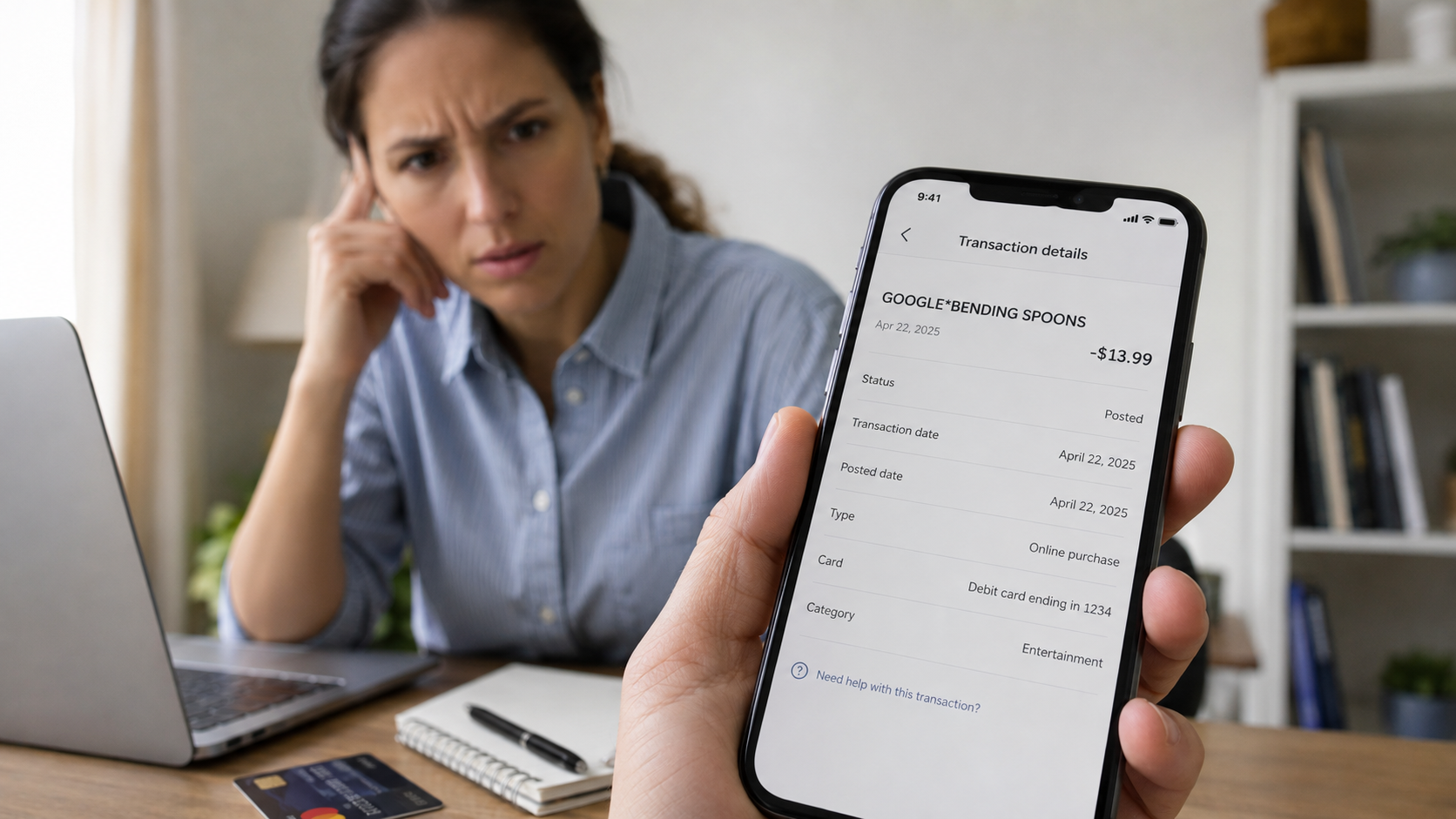
You open your banking app to check something completely unrelated and there it is:
**GOOGLE*Bending Spoons**
Maybe the amount is small. Maybe it is a yearly payment large enough to make you stop scrolling.
The frustrating part is that the name may mean absolutely nothing to you.
You do not remember downloading an app called Bending Spoons. You do not remember subscribing to something with that name. And now you are trying to work out whether this is an old subscription, a forgotten free trial or a payment you genuinely never authorized.
The good news is that the wording of the charge gives us somewhere useful to start.
The Fast Answer: What Is GOOGLE*Bending Spoons?
Bending Spoons' own support documentation says that if you see a Google Bending Spoons charge, the subscription was activated through the Google Play Store.
That does not necessarily mean you knowingly purchased something called “Bending Spoons.”
Bending Spoons operates a number of digital products and services. Its support pages currently list products including Evernote, Remini, Splice, Meetup, StreamYard, WeTransfer, Vimeo, iTranslate, Alight Motion and others.
So your first job is not to panic.
Your first job is to find out which subscription produced the charge.
Here is exactly how I would check it.
Step One: Write Down the Exact Charge Before Doing Anything
Open the transaction in your banking or card app.
Write down or take a screenshot of:
- The exact merchant description
- The amount
- The transaction date
- Whether it says pending or completed
- The card that was charged
- Whether there are earlier charges for the same amount
Do not post screenshots publicly if they contain your full card number, account number or other sensitive information.
The exact wording matters.
Google says purchases made through Google Play can appear on statements using formats such as:
**GOOGLE*App developer name**
or
**GOOGLE*App name**
or a Google content description.
That is why a descriptor containing Bending Spoons can appear even when that is not the app name you remember.
Step Two: Check Your Google Play Subscriptions
This is the first place I would look.
On an Android device:
- Open Google Play.
- Tap your profile picture.
- Open Payments and subscriptions.
- Open Subscriptions.
- Look through every active subscription.
- Look for an app or service that matches the amount or renewal date on your bank statement.
If you find the subscription, do not cancel immediately without first writing down what it is.
Take a screenshot showing:
- The subscription name
- The price
- The billing period
- The next renewal date
That gives you a clean record if you later need to contact support or request a refund.
Google specifically advises users to make sure they are signed into the Google Account associated with the subscription.
And this leads to one of the most common reasons people cannot find a mystery subscription.
Check Every Google Account You Use
Do you have an old Gmail account?
A work account?
A second account used on an old Android phone?
A Google account created years ago that is still signed into your device?
Check all of them.
Bending Spoons itself tells customers to check the subscription pages for all of their Google accounts or Apple accounts when trying to identify a subscription.
Finding nothing under your main email does not prove that there is no subscription.
It may simply be attached to another account.
Step Three: Check Your Google Play Order History
If the subscription page does not immediately solve the mystery, check your purchase history.
Google says that when you make a Google Play purchase, it sends a confirmation email to the Google Account used for the purchase. Google also lets you review previous purchases through Google Play and its payments service.
On the Google Play app:
- Tap your profile picture.
- Open Payments and subscriptions.
- Open Budget and history.
- Look for a transaction matching the amount and date on your statement.
On a computer, you can also review your Google Play order history.
Compare:
Bank charge amount → Google Play transaction amount
and
Bank charge date → Google Play transaction date
Do not only look for the words “Bending Spoons.”
Look for the actual product or app name.
Step Four: Search Your Email Receipts
This simple check can save a surprising amount of time.
Open the email account connected to Google Play and search for terms such as:
Bending Spoons
Google Play
subscription
receipt
Then search for the amount you were charged if your email service supports it.
Also search the names of apps you remember installing.
Google confirms that purchase confirmation information is sent to the Google Account used for the purchase.
An old receipt can answer three important questions at once:
What did I subscribe to?
When did I subscribe?
Which Google account did I use?
Step Five: Work Out Which Bending Spoons Product It Could Be
This is where the merchant name can become confusing.
You may never have intentionally searched for “Bending Spoons.”
Instead, you may recognize one of the products associated with the company.
Bending Spoons' support documentation currently includes products such as:
- AOL
- Alight Motion
- Blossom
- Clime
- Eventbrite
- Evernote
- Harvest
- Issuu
- iTranslate
- Meetup
- MileIQ
- Pixomatic
- Productive
- PicJointer
- Remini
- Robokiller
- Splice
- StreamYard
- TapeACall
- Tractive
- TrapCall
- Vimeo
- WeTransfer
This does not mean that seeing a Bending Spoons charge automatically proves one particular app on that list caused your payment.
Use the list as a memory check.
Ask yourself:
Did I install one of these?
Did I test a premium version?
Did I start a trial?
Did I use one for photo editing, video editing, productivity, meetings or another one-off task and then forget about it?
Then confirm what actually happened through your Google Play subscription or order history.
Do not rely on memory alone.
Step Six: Cancel the Subscription Correctly
Once you have identified the subscription, you can stop its next renewal.
On Google Play:
- Open your Google Play subscriptions.
- Select the subscription.
- Choose Cancel subscription.
- Follow the confirmation steps.
- Keep a screenshot or email confirming that the subscription has been cancelled.
On a computer, Google's current instructions are:
- Go to your subscriptions in Google Play.
- Choose Manage beside the subscription.
- Choose Cancel subscription.
- Select the reason when asked.
- Continue through the confirmation.
Important: Deleting the App Is Not Enough
This is the mistake I would be most careful about.
You delete an app from your phone and understandably think:
“I don't have the app anymore, so they can't keep charging me.”
Unfortunately, that is not how Google Play subscriptions work.
Google explicitly states that uninstalling an app does not cancel the subscription.
You need to cancel the actual subscription through the billing system.
So if you deleted an app months ago but have continued receiving charges, check your Google Play subscriptions now.
Step Seven: Decide Whether This Is a Refund or an Unauthorized Charge
This distinction matters.
There are two very different situations.
Situation One: You Recognize the Subscription
Maybe you find the app and suddenly remember what happened.
You downloaded it.
You started the subscription.
You forgot about the renewal.
Or perhaps someone in your household made the purchase with permission to use your account.
In that situation, you are generally dealing with a refund request, not an unauthorized-payment report.
Google's refund rules depend on factors including what was purchased, when it was purchased, how it was paid for and where the customer is located.
For many app, game and in-app purchase situations, including subscriptions, Google states that requests made within forty-eight hours may qualify for a refund depending on the details of the purchase. After forty-eight hours, Google directs customers in many situations to contact the developer, who can help according to its policies and applicable law.
That does not guarantee that you will receive a refund.
But if you want your money back, submit the request rather than assuming cancelling the subscription automatically reverses the previous payment.
Cancellation and refund are two separate actions.
Situation Two: You Never Made the Purchase
This is different.
If you have:
- Checked your Google accounts
- Checked your subscriptions
- Checked your purchase history
- Checked with family members or other people who could legitimately use the payment method
- And you still genuinely do not recognize the transaction
then use Google's unauthorized-charge process.
Google currently says that an unrecognized Google Play purchase made on a credit card, debit card or PayPal should be reported within one hundred twenty days of the transaction.
Do not label a transaction as fraud simply because you forgot the merchant name.
Investigate first.
If you determine that you genuinely did not authorize it, report it through the proper unauthorized transaction process.
Step Eight: If It Is Not Showing in Google Play
This part is important because not every Bending Spoons-related payment has to be a Google Play subscription.
If your bank statement specifically shows **GOOGLE*Bending Spoons**, Bending Spoons says this indicates a subscription activated through Google Play.
But if your statement shows something different, such as a direct Bending Spoons charge without the Google descriptor, the payment route could be different.
Bending Spoons says customers who subscribed using another payment method and received an unfamiliar PayPal or credit-card charge can contact its support team and select the option for an unrecognized Bending Spoons charge.
Bending Spoons recommends providing useful identifying information such as:
- The app name, if known
- The last four digits of the card
- Payment receipts
- An invoice or other relevant payment information
Only provide payment information through the company's official support process.
Never send your full card number in an ordinary support message.
Step Nine: Check Google Payments Too
If Google Play is not giving you a clear answer, there is another place worth checking.
Your Google payments profile can contain transaction information, subscriptions and recurring payments associated with Google purchases.
Google's order-history guidance says users can review individual orders under Activity and subscriptions under Subscriptions and services in Google Payments.
This is especially useful if you have several Google services and cannot immediately match the bank charge to what you see inside the Play Store.
Again, check every Google account you use.
Step Ten: Secure Your Account If Something Feels Wrong
If the transaction is genuinely unauthorized, do more than chase the refund.
Google advises users who suspect that somebody has their password to change or reset the password.
I would also review which devices and people have access to your Google account and payment method.
The goal is not only to fix one charge.
It is to stop another one.
The Five-Minute Bending Spoons Charge Checklist
If you are reading this while looking at the charge on your phone, work through this list in order.
One: Check the descriptor
Does it actually say:
**GOOGLE*Bending Spoons**
Take a screenshot.
Two: Check the amount
Write down the exact amount and date.
Three: Check Google Play subscriptions
Look through every Google account you use.
Four: Check Google Play order history
Match the amount and transaction date.
Five: Search your email
Look for Google Play receipts and subscription confirmation emails.
Six: Identify the product
Check whether you recognize a Bending Spoons-related product or service.
Seven: Cancel the subscription
Do not simply uninstall the app.
Eight: Save proof
Keep the cancellation confirmation and relevant transaction information.
Nine: Request a refund if appropriate
Refund eligibility depends on the purchase and your circumstances.
Ten: Report it as unauthorized only if you genuinely did not make the purchase
If you still cannot identify it after checking your accounts and people who have legitimate access, use Google's unauthorized-payment process.
Proof I Would Keep Before Contacting Support
Before contacting Google, Bending Spoons or your payment provider, create a small folder containing:
- Screenshot of the bank transaction
- Transaction date
- Transaction amount
- Exact merchant descriptor
- Screenshot of the subscription
- Google Play order information
- Subscription cancellation confirmation
- Relevant receipt email
- Refund request confirmation, if submitted
- Any reference number given by support
Do not store your full card number in these notes.
This sounds overly careful until you have to explain the same transaction to three different support systems.
Having everything together makes that conversation much easier.
Common Mistake: “I Cancelled, So Why Didn't I Get My Money Back?”
Because cancellation normally addresses future renewal.
A refund is a request concerning money that has already been charged.
They are not the same action.
If you discover the payment after it has already gone through, first cancel the subscription if you do not want another renewal.
Then separately check the refund process.
Common Mistake: Only Checking One Gmail Account
This is one of the first things I would eliminate.
A subscription can be sitting quietly on an old Google account while you spend half an hour searching your current account.
Switch accounts and check again.
Do the same when checking receipts.
Common Mistake: Deleting the App Months Ago
Deleting an app from your phone does not automatically cancel its Google Play subscription. Google explicitly warns users about this.
If you remember uninstalling one of the apps associated with the charge, that is actually a good reason to check the subscription page.
Common Mistake: Immediately Calling the Charge Fraud
An unfamiliar merchant name is not proof of fraud.
Bending Spoons can appear as the company or developer connected with a product whose consumer-facing name is different.
Check your records first.
But do not ignore a transaction that remains completely unexplained after those checks.
Frequently Asked Questions
What is Bending Spoons?
Bending Spoons is a technology company that owns and operates a portfolio of digital products. Its official website currently highlights products including Vimeo, Evernote and Remini, while its support system covers a broader range of products and services.
This is why the Bending Spoons name can appear unfamiliar even when the underlying product is something you recognize.
Why is Bending Spoons charging my card?
If the descriptor says Google Bending Spoons, Bending Spoons says the charge represents a subscription activated through Google Play.
Check your Google Play subscriptions and purchase history to identify the specific product.
Is GOOGLE*Bending Spoons automatically fraud?
No.
The descriptor alone does not establish fraud.
First check your Google accounts, Google Play subscriptions, purchase history, email receipts and whether someone with legitimate access to your payment method made the purchase.
If nobody authorized the transaction and you still cannot explain it, use Google's process for reporting an unauthorized charge.
How do I cancel a Bending Spoons subscription on Android?
Open Google Play, go to your subscriptions, select the relevant subscription and choose Cancel subscription.
Google warns that uninstalling the app does not cancel the subscription.
Can I get a refund from Bending Spoons?
The correct refund route depends on how the subscription was purchased.
For a subscription purchased through Google Play, Bending Spoons directs customers to Google's refund process. For subscriptions purchased through other methods, Bending Spoons provides its own support route.
A refund is not guaranteed.
I cancelled the subscription. Will I automatically get my last payment back?
No automatic refund should be assumed.
Cancelling stops or changes future renewal according to the subscription terms. Refund eligibility is a separate question governed by the applicable refund policy.
Why can't I find the subscription?
Check every Google account you use.
Then check both your Google Play order history and Google Payments history.
Bending Spoons specifically advises customers to check all Google accounts when looking for subscriptions.
What if I deleted the app already?
Check Google Play anyway.
Uninstalling an Android app does not cancel its Google Play subscription.
What if the charge does not start with GOOGLE?
Do not assume it is a Google Play transaction.
Google says Google Play purchases use specific Google statement formats. If a charge does not fit Google's formats, Google advises contacting the payment provider for more information.
If the descriptor refers directly to Bending Spoons and you believe the payment was made using another method, Bending Spoons also has an official support process for unrecognized credit-card or PayPal charges.
Final Step: Stop the Next Charge First
When you discover an unfamiliar recurring payment, it is easy to spend all your energy trying to understand the payment that already happened.
Do not forget about the next one.
Find the subscription.
Confirm which account owns it.
Cancel it properly if you no longer want it.
Save the confirmation.
Then deal with the existing payment through the correct refund or unauthorized-payment process.
And if you still cannot identify the charge after checking every Google account, your order history and your receipts, do not simply ignore it because the amount is small.
An unexplained charge deserves an explanation.
Editorial note: Information on cancellation and refunds can change. Always verify the current instructions on Google Play and Bending Spoons' official support pages before taking action. Refund eligibility depends on the transaction, payment route, location and applicable policy.
Comments (0)
No published comments yet. Start a useful, respectful discussion.