
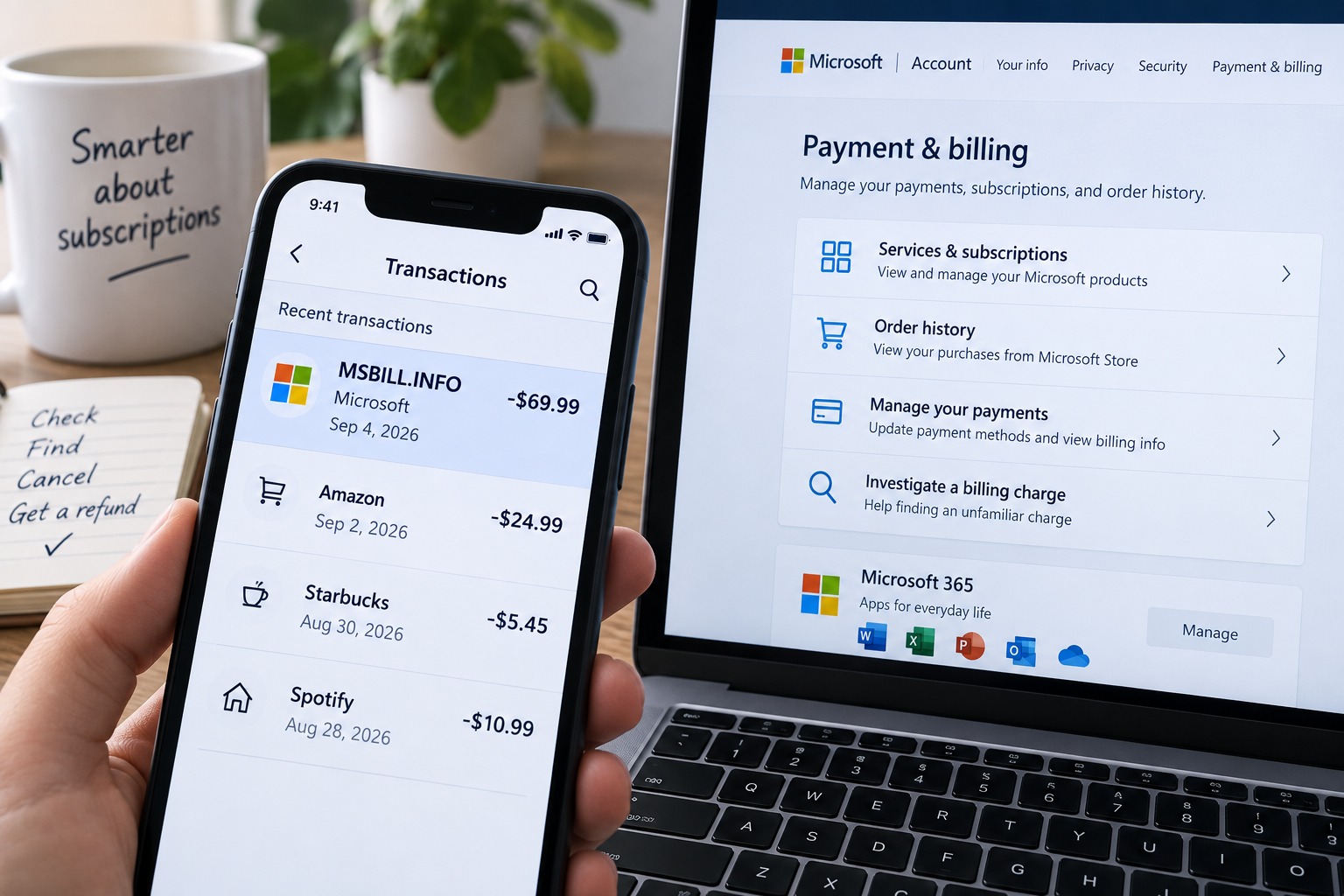
If you opened your banking app and found an MSBILL.INFO charge or a transaction containing MICROSOFT#G, the frustrating part is often what happens next: you sign in to Microsoft, check your subscriptions, and find nothing that explains the payment.
Do not assume the charge is automatically fraud. But do not assume it is Microsoft 365 either.
The wording on a bank statement does not tell you which exact product, account, subscription, game, app, or purchase created the charge.
The fastest way to solve it is to work backwards from the payment itself.
Fast answer: what should I check first?
If you do not recognize a Microsoft charge, Microsoft currently tells customers to open the Manage your payments section of their Microsoft account and use the Investigate option.
That is where I would start before cancelling cards, disputing transactions, or searching through years of email receipts.
Then check:
- Your Microsoft order history.
- Services & subscriptions.
- Any other Microsoft accounts you use.
- Purchases made by family members using your card.
- Xbox, game, app, or in-app purchases.
- Whether an old declined payment was charged again.
Microsoft lists all of these as possible explanations for an unexpected charge.
What does MSBILL.INFO mean on my bank statement?
If your bank statement contains MSBILL.INFO, the important question is not simply what the text means.
The useful question is:
Which Microsoft account or transaction is connected to this payment?
A statement descriptor can be shortened or formatted differently depending on the bank and payment system. It does not give you enough information to identify the exact product on its own.
The same applies if you see text such as MICROSOFT#G followed by letters or numbers.
Do not post the full transaction reference publicly. It can contain information connected to your payment.
Instead, keep the exact descriptor, transaction date, amount, and last four digits of the card available when checking your accounts or contacting support.
Step 1: Use Microsoft's Investigate tool
Microsoft has an official process specifically for unexpected charges.
Sign in to your Microsoft account and go to Manage your payments.
Look for the transaction and select Investigate if the option is available.
Microsoft says this tool is intended to help investigate an unrecognized charge connected to a card you own.
This is better than guessing from the name on your statement because the payment itself can be checked against Microsoft billing information.
If you cannot find the charge there, continue with the next steps.
Step 2: Check Microsoft order history
Open your Microsoft account order history.
Microsoft says order history can include apps, games, subscriptions, Microsoft Store purchases, invoices, and other transactions.
Make sure you check the correct date range.
Look particularly for orders marked Completed or Redeemed.
Also compare the amount in Microsoft order history with the amount on your bank statement.
A charge you forgot about can become easier to recognize when you see the product name and purchase date beside it.
Step 3: Make sure you are using the right Microsoft account
This is one of the easiest things to miss.
You may have more than one Microsoft login even if you only think of yourself as having one account.
For example, you could have used:
An Outlook address
A Hotmail address
An email connected to Xbox
A different personal Microsoft account
A work or business Microsoft account
Microsoft specifically tells customers with more than one account to make sure they are signed in to the account that made the purchase.
If your order history is completely empty, sign out and think about which email address you were using when the subscription or product may have been purchased.
Do not create a new Microsoft account just to investigate the payment. A new account will not contain the old purchase.
Step 4: Check Services & subscriptions
Next, open Microsoft's Services & subscriptions section.
Look for products with recurring billing enabled.
Depending on the account, this can include services such as Microsoft 365, OneDrive, Clipchamp, or other Microsoft subscriptions.
Check:
The subscription name
The next billing date
The payment method
Whether recurring billing is enabled
The subscription expiry date
There is one detail worth knowing.
If Microsoft shows Turn on recurring billing instead of an option to turn it off, Microsoft says the subscription is already scheduled to expire and should not automatically renew after the date shown.
That can save you from trying to cancel something that is already cancelled.
Why can Microsoft charge me when I don't remember buying anything?
Microsoft lists several common explanations for unexpected charges.
Recurring billing was still enabled
A subscription can renew automatically when recurring billing remains active.
This is especially easy to overlook with subscriptions that renew annually because months can pass without you thinking about them.
Someone in your family used the card
Microsoft says a family member or someone you know may have made a purchase using your payment method.
That does not automatically mean your account was hacked.
Check with anyone who legitimately has access to the card before reporting it as fraud.
An earlier declined payment was retried
Microsoft also says a payment that was previously declined can later be charged again.
This can make the transaction look new even though it relates to an earlier purchase.
A preorder or split order was charged
A preorder does not always appear on your statement at the moment you originally place the order.
Microsoft also lists shipped preorders and split orders as possible explanations for a charge appearing later.
An in-app purchase was made
Microsoft says unexpected charges can also come from purchases made inside an app, game, or Microsoft product.
If somebody in the household uses Xbox or games connected to your Microsoft payment method, check those purchases as well.
I checked my subscriptions and there is nothing there
This is where many people get stuck.
No active subscription does not necessarily mean no Microsoft transaction exists.
Check your order history separately.
A one-time purchase, app, game, add-on, preorder, or other transaction may appear in order history without appearing as an active subscription.
Also check other Microsoft accounts before concluding that the charge is unauthorized.
The card can be connected to a different account than the one you normally use.
What if the charge repeats every month?
If the same MSBILL.INFO or Microsoft charge appears repeatedly, check Services & subscriptions for recurring billing.
If you find the subscription:
Open the subscription.
Select Manage.
Choose Cancel if that option is available.
Follow Microsoft's cancellation instructions.
Turning off recurring billing stops future renewals while normally allowing access until the subscription expiry date.
Check the page carefully after cancellation so you know whether Microsoft says the subscription will end immediately or remain active until the end of the paid period.
What if I cancelled Microsoft but was charged again?
First check the subscription end date.
Microsoft says customers can still see a charge when cancellation happened too close to the billing date.
Microsoft's current support guidance states that cancellation needs to occur more than two days before the billing date to avoid that situation.
Microsoft also recommends checking that you cancelled the subscription from the correct Microsoft account.
If the charge is unfamiliar, return to Manage your payments and use the Investigate option.
Can I get an MSBILL.INFO charge refunded?
Possibly, but do not assume every Microsoft charge qualifies.
Refund rules depend on what you purchased, when you purchased or renewed it, your location, and how the purchase was made.
For subscriptions purchased directly from Microsoft, Microsoft's current policy says that in most cases a refund can be available within 30 days of the initial purchase or before the first recurring billing date, whichever comes first.
Microsoft also currently states that the most recent recurring billing charge can qualify for a refund when the subscription is cancelled within 30 days after that payment. Microsoft limits that particular refund right to one time per Microsoft account, per subscription product.
Regional consumer rights can provide different or additional rights.
Microsoft says refund eligibility is shown during the cancellation process, and not every cancellation produces a refund.
For games, apps, hardware, and other purchases, different return and refund rules apply.
What if I bought the subscription somewhere else?
If you discover that your Microsoft subscription was purchased through another company, the refund process can be different.
Microsoft says subscriptions purchased through providers such as Apple, Google Play, Amazon, or another retailer generally have to be managed through that provider.
That includes cancellation and refund requests.
Check where the original purchase was made before spending time trying to cancel it in the wrong place.
What if Microsoft order history shows nothing?
If you have checked:
Your main Microsoft account
Other Microsoft accounts you use
Order history
Services & subscriptions
Manage your payments
Family purchases
Xbox or app purchases
and you still cannot identify the transaction, contact Microsoft Support.
Do not publish the full payment reference in a public forum.
Have the transaction information ready so you can explain exactly what you are trying to identify.
Useful details include:
The transaction date
The exact amount
The wording shown by your bank
The last four digits of the card
Whether the charge repeats
Which Microsoft accounts you already checked
When should I contact my bank?
I would not start with a chargeback when the problem is simply that you do not remember the purchase.
First try to identify the transaction through Microsoft.
If you determine that the charge is legitimate but unwanted, Microsoft's cancellation or refund process is normally the appropriate route.
The situation is different when you genuinely believe your card information was stolen or used without your permission.
Microsoft's official guidance says that if you believe someone obtained your payment information, you should contact your bank or payment provider to help prevent additional charges.
A chargeback is a transaction dispute handled through your bank, card company, PayPal, or another financial institution.
Use that process for genuinely unauthorized payments, not simply because you changed your mind about a valid purchase.
A simple proof checklist before you dispute anything
Before taking action, save:
The bank statement entry
The transaction date
The amount charged
The exact merchant text
The last four digits of the payment card
Screenshots of relevant Microsoft order history
The subscription page if you find a matching subscription
Any cancellation confirmation
Any Microsoft refund confirmation
Keeping these together makes it much easier to explain the problem to Microsoft or your payment provider without relying on memory.
Common mistakes to avoid
Assuming MSBILL.INFO automatically means Microsoft 365
Do not identify a product from the statement text alone.
Confirm the transaction inside your account.
Checking only one Microsoft account
Old Outlook, Hotmail, Xbox, personal, work, or business accounts can lead you to look in the wrong place.
Cancelling the card before checking the charge
If the payment is legitimate, you still need to identify and cancel the underlying subscription to understand what happened.
If the payment is genuinely unauthorized or you believe your payment details were compromised, contact your bank.
Assuming cancellation automatically means a refund
Microsoft separates cancellation from refund eligibility.
Not every cancellation receives a refund.
Posting the full transaction code online
Do not share full card details, transaction references, email addresses, order numbers, or other private account information publicly.
FAQ
Is MSBILL.INFO a Microsoft subscription?
The statement text alone does not identify a specific subscription. Use Microsoft's Manage your payments investigation tool, order history, and Services & subscriptions to determine what produced the charge.
What is MICROSOFT#G on my bank statement?
If your statement contains MICROSOFT#G followed by a transaction reference, do not use the descriptor alone to guess the product. Check the payment through your Microsoft account or contact Microsoft Support if you cannot match it.
Why does Microsoft charge me when I have no subscription?
Microsoft says unexpected charges can come from recurring subscriptions, family purchases, a previously declined payment being charged again, preorders or split orders, and in-app purchases. A one-time purchase may also appear in order history rather than as an active subscription.
Why is my Microsoft order history empty?
You may be signed in with the wrong Microsoft account. Microsoft advises users with multiple accounts to make sure they are using the account associated with the purchase.
How do I stop an MSBILL.INFO recurring charge?
Identify the subscription first. If it is a Microsoft subscription with recurring billing enabled, open Services & subscriptions, select Manage, and follow the cancellation instructions.
Can I get a refund after Microsoft renewed my subscription?
Microsoft's refund rules depend on the subscription, timing, country, and purchase method. Microsoft's current policy includes certain refund rights within 30 days for eligible subscription purchases and renewals, but not every cancellation qualifies.
What if I do not recognize the charge at all?
Use Microsoft's Investigate billing-charge process first. If you still cannot identify the transaction, contact Microsoft Support. If you believe your payment information has been stolen or compromised, Microsoft advises contacting your bank or payment provider to prevent additional charges.
Should I dispute the charge with my bank?
A bank dispute or chargeback is appropriate for a payment you genuinely believe was made without your consent. For a legitimate Microsoft purchase where you want your money back, check Microsoft's refund process first.
Bottom line
An MSBILL.INFO or MICROSOFT#G charge can be alarming when your subscriptions page looks empty, but the quickest solution is not to guess what the descriptor means.
Start with Microsoft's Manage your payments investigation tool.
Then check order history, Services & subscriptions, every Microsoft account you use, family purchases, and Xbox or app transactions.
If you find the purchase, cancel recurring billing if necessary and check whether Microsoft offers a refund.
If you cannot connect the charge to any account and believe your payment information was used without permission, contact Microsoft Support and your payment provider.
The goal is simple: identify the transaction first, then choose the correct cancellation, refund, or dispute route.
Comments (0)
No published comments yet. Start a useful, respectful discussion.