
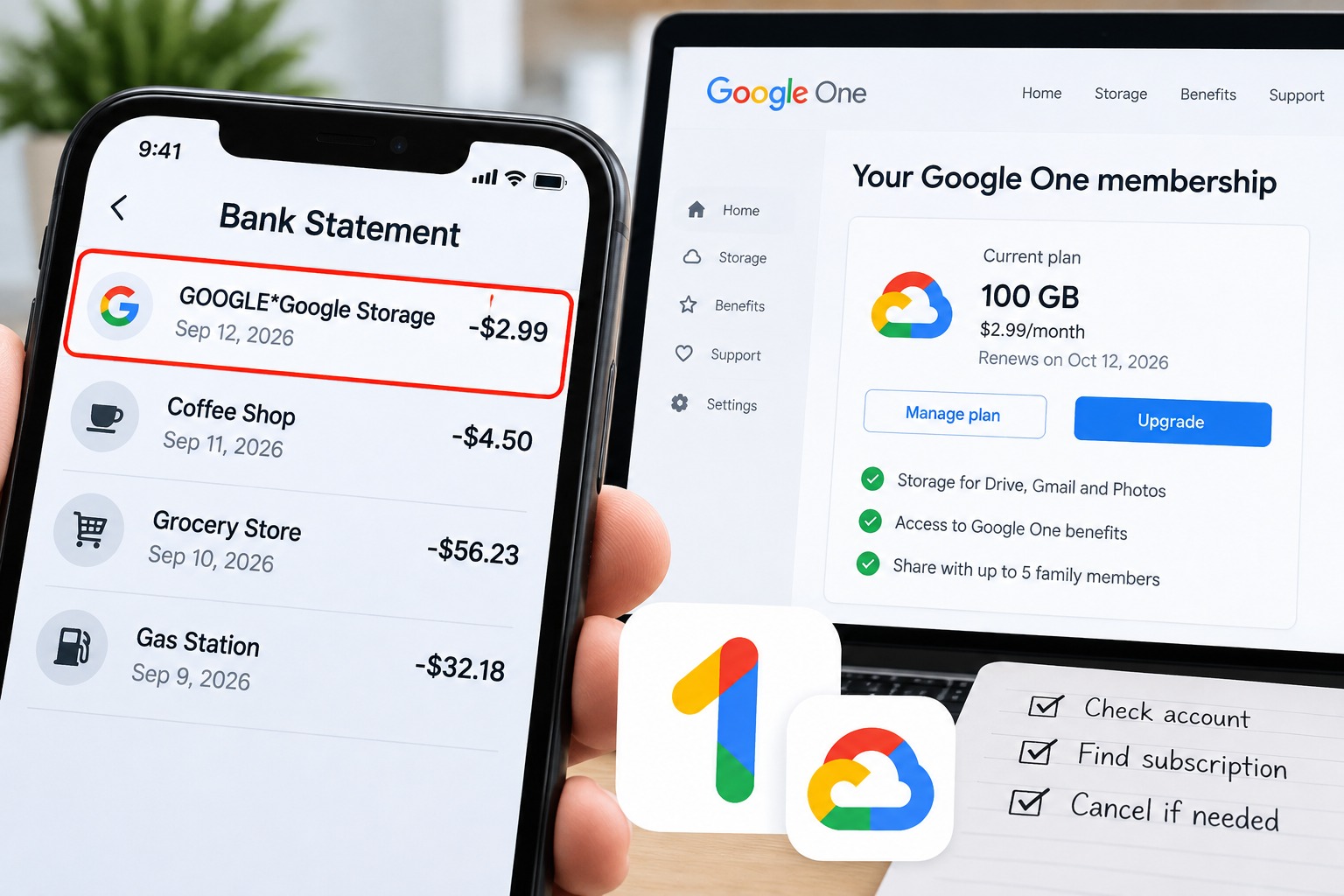
A GOOGLE*Google Storage charge can be confusing for one simple reason.
You check your bank account and see money taken by Google.
You open Google One.
Nothing obvious is there.
You check Google Play subscriptions.
Still nothing.
At that point, it is easy to assume the charge is fake or that Google is billing you for something you never bought.
Do not jump straight to that conclusion.
GOOGLEGoogle Storage is a real billing descriptor used by Google for storage-related charges. Google officially lists GOOGLE Google Storage among the descriptions that can appear on credit and debit card statements.
The important part is figuring out which Google account, subscription, or payment route produced the charge.
That is what I would check first.
Quick answer
If GOOGLE*Google Storage appears on your card or bank statement, check these places in this order:
- Google Payments activity
- Google Payments subscriptions and services
- Google One
- Every Google account you actually use
- Your Apple subscriptions if you originally bought Google One through an iPhone or iPad
- Family members or anyone else who has access to the payment card
- Your bank statement to see whether the transaction is completed or still pending
If you find the Google One membership, cancel it from the account that owns the subscription.
If you cannot connect the charge to any account you control and you did not authorize it, use Google's unauthorized-charge process and contact your bank if necessary.
Let us go through this properly.
What Is GOOGLE*Google Storage on a Bank Statement?
Google uses recognizable billing descriptions for purchases made through its products.
Google's official Payments Center documentation states that Google charges normally begin with GOOGLE * followed by a product, service, company, developer, or other descriptor.
One of the descriptors Google specifically lists is:
GOOGLE *Google Storage
Google associates that descriptor with Google storage services.
Paid Google storage today is generally managed through Google One. A Google One membership can provide additional storage used across services including Google Drive, Gmail, and Google Photos.
So if you see GOOGLE*Google Storage, the first thing I would investigate is a paid Google storage plan.
That does not automatically mean the charge is fraudulent just because you cannot immediately see a subscription.
You need to find where the payment is actually recorded.
Step One: Write Down the Exact Charge Before Doing Anything
Start with the bank transaction itself.
Do not work from memory.
Open your banking app or card statement and write down:
- The exact merchant description
- The amount
- The currency
- The transaction date
- Whether it says pending or completed
- The last four digits of the card that was charged
- Whether the same amount appeared in previous months or years
The exact wording matters.
For example:
GOOGLE *Google Storage
is different from:
GOOGLE *Google Play
GOOGLE *YouTube
GOOGLE *CompanyName
or another descriptor beginning with GOOGLE.
Banks can also shorten merchant descriptions, so what appears on one person's statement may not look identical on another person's statement.
This is why I would not identify the subscription from the amount alone.
Start with the descriptor.
Then match it against Google's payment history.
Step Two: Check Google Payments Activity
This is the first place I would personally check.
Go to Google Payments while signed in to the Google account you normally use.
Open Activity.
Google says this page contains transactions for Google products and subscriptions.
Look for a transaction with the same:
- Date
- Amount
- Currency
- Payment method
as the GOOGLE*Google Storage charge on your bank statement.
If you find an exact match, open it.
You now have something far more useful than the bank descriptor because the Google transaction can help identify what you actually paid for.
Do not stop after checking Google Play.
A common mistake is checking the Play Store subscription page, seeing nothing, and assuming there is no Google subscription.
Google Payments gives you a broader view of payments connected with that Google payments profile.
Step Three: Check Subscriptions and Services
While you are still in Google Payments, open Subscriptions & services.
Google specifically tells users to use this area to find recurring subscriptions and services attached to their payments profile.
Look carefully for:
- Google One
- Google storage
- An older storage plan
- Any recurring Google service you recognize
Open anything that looks related and compare its billing date and payment method with your bank statement.
If the amount and date match, you have most likely found the source.
If nothing is there, keep going.
Do not assume the search is finished.
Step Four: Check Every Google Account You Actually Use
This is where people can lose a lot of time.
Many of us have more than one Google account.
You may have:
- A personal Gmail account
- An old Gmail account
- A work account
- A second account used on Android
- An account used for Google Photos
- An account created years ago and forgotten
- An account logged into another phone or tablet
Google Payments information is tied to the account and payments profile you are viewing.
So if you are signed into the wrong account, the subscription you are looking for will not be sitting there waiting for you.
Repeat the Payments Activity and Subscriptions & services check on every Google account that could realistically have used the card.
I would concentrate especially on accounts that have ever been used with:
Google Photos
Google Drive
Gmail storage upgrades
Google One
Android devices
Do not randomly test accounts you do not recognize.
Check the accounts you actually own or control.
Step Five: Open Google One Directly
Next, open Google One while signed into each relevant account.
Look at the current membership information.
If there is an active paid plan, check the plan and billing details.
Google says users can cancel a Google One membership directly from Google One.
On a computer, Google's current instructions are:
Open Google One.
Open Settings.
Choose Cancel membership.
Confirm Cancel membership.
You should receive confirmation that the subscription has been canceled.
Canceling stops future Google One payments, but it does not necessarily produce a refund for a payment that has already been processed.
I will explain refunds later.
Step Six: If You Used an iPhone or iPad, Check Apple Too
This one is important.
If you originally subscribed to Google One through Apple's App Store, the billing relationship can be different from a Google One subscription purchased directly through Google.
Google's own cancellation instructions specifically address memberships purchased through the App Store.
If you subscribed through Apple, check the subscriptions attached to your Apple account.
Google says an App Store Google One membership needs to be managed through Apple's subscription system.
So if Google One is not showing where you expected it inside Google's normal payment route, think back to where you originally signed up.
Was it from an Android phone?
A web browser?
An iPhone?
An iPad?
That detail can completely change where you need to manage the subscription.
Step Seven: Check Whether Someone Else Used Your Card
Before calling a charge fraudulent, check one uncomfortable but very common possibility.
Could somebody you know have used the payment method?
Google itself tells users investigating unrecognized charges to check whether family or friends with access to the card or account made the purchase.
Think about:
- A spouse or partner
- Someone in your household
- A family member
- A shared device
- A card saved on another person's Google account
Ask before reporting the transaction as fraud if someone you trust could realistically have made the purchase.
You should also check family arrangements.
Google One supports family sharing, and Google says Google One storage can be shared with family members.
The person managing the Google One plan is responsible for the membership.
Family members can consume shared storage without each person individually having the paid plan in their own name.
So seeing Google One benefits on one account does not automatically tell you which person is actually paying for the membership.
Step Eight: Make Sure the Charge Is Not Just Pending
This step can save you from chasing a payment that was never actually finalized.
Look carefully at your bank statement.
Does the GOOGLE*Google Storage entry say:
Pending
Processing
Authorization
or something similar?
Google says pending authorizations can sometimes be mistaken for duplicate or unexpected charges.
For example, Google explains that a pending authorization can appear alongside a completed purchase and later disappear.
Google also says small temporary transactions can appear when a new payment method is added.
So distinguish between:
A completed charge
and
A temporary authorization
before you file a dispute.
If the transaction disappears from your statement without settling, it was not the same situation as a completed recurring subscription payment.
Step Nine: Check for a Duplicate Charge
Now compare the transaction carefully.
Did Google charge the same amount twice?
Look in Google Payments Activity.
If only one completed Google transaction exists but your bank displays another matching entry as pending, Google's documentation says the second entry can be an authorization rather than a true second purchase.
If both charges settle as completed transactions, investigate them individually.
Record both transaction dates and amounts.
Do not simply assume that seeing two lines means Google permanently took the money twice.
The status matters.
Step Ten: How to Cancel the Google Storage Charge
Once you find the Google account that owns the Google One membership, cancellation is straightforward.
For a Google One membership purchased directly through Google:
Open Google One.
Open Settings.
Select Cancel membership.
Confirm the cancellation.
Google states that you can cancel a Google One plan at any time.
After cancellation, future payments should stop.
Your paid storage and membership benefits do not necessarily vanish the second you press cancel.
Google's terms for storage plans generally allow the purchased storage for the remaining subscription period.
That is another reason to save your cancellation confirmation.
Take a screenshot.
Keep the cancellation email.
Write down the date.
If another charge appears later, you now have evidence showing when you canceled.
What Happens to Your Files After You Cancel Google One?
Canceling storage does not mean Google instantly deletes every photo, email, and Drive file in your account.
However, once your paid storage period ends, your account returns to the storage allowance available to that account.
If your stored data exceeds your available limit, restrictions can apply to services that rely on Google storage.
Before canceling, I would check how much storage the account is currently using.
That gives you time to:
Delete files you no longer need
Clean large email attachments
Remove unnecessary Google Photos backups
Download important files
Move data elsewhere if necessary
Do this before your paid storage period ends instead of discovering later that the account is over its limit.
Can You Get a Refund for GOOGLE*Google Storage?
Do not assume cancellation automatically means refund.
They are two different things.
Google's official Google One policy says that in most countries or regions, Google storage plan purchases are non-refundable.
Google says the storage you purchased remains available for the length of the subscription even if you cancel.
There can be differences depending on how the subscription was purchased and local rules.
For purchases handled through Google Play, Google directs users to the applicable Google Play refund process.
For a membership purchased through Apple's App Store, Google directs users to Apple for refund requests.
So the first question is not simply:
Can I get a refund?
It is:
Who processed this payment?
That tells you which refund process actually applies.
What If I Never Authorized the Charge?
This is different from forgetting to cancel a subscription.
If you checked your accounts, purchase history, subscriptions, family members, and payment routes and still cannot recognize the transaction, treat it as an unrecognized charge.
Google has an official unauthorized-charge process.
Google says charges for its products and services normally appear on statements beginning with Google.
Google also recommends checking common explanations first, including:
Family or friends using the payment method
Subscriptions you forgot about
Pending authorizations
Duplicate-looking authorizations
Your Google purchase history
If you still do not recognize the transaction and believe it is fraudulent, report the unauthorized charge to Google.
If you believe your Google account itself may have been compromised, change your password and review the security of the account.
If the transaction does not match Google's recognized billing formats or Google cannot identify it as one of its transactions, contact the bank or card issuer shown on the statement.
When I Would Contact the Bank
I would contact the bank promptly if:
You do not recognize the transaction after checking your Google accounts
Google cannot connect the transaction to your accounts
The charge does not match a legitimate Google transaction
Multiple suspicious transactions are appearing
Your card information may have been stolen
Charges continue after you have taken the appropriate cancellation or fraud-reporting steps
Tell the bank the exact merchant descriptor, amount and transaction date.
Do not simply say:
Google charged me.
Give them the exact information shown on the statement.
That makes it easier to identify the transaction correctly.
Do Not Make These Mistakes
Mistake One: Checking Only Google Play
Google Play subscriptions are not the only place where Google-related payments can appear.
Check Google Payments Activity and Subscriptions & services too.
Mistake Two: Checking Only One Gmail Account
If you have multiple Google accounts, the subscription can be attached to another one.
Check each account you genuinely use.
Mistake Three: Assuming Every GOOGLE* Charge Is Google One
The word Google at the beginning does not automatically mean Google One.
Google uses many different statement descriptors.
Read the entire merchant description.
Mistake Four: Canceling Without Saving Proof
Keep your confirmation.
A screenshot and confirmation email take seconds to save and can be extremely useful if a later billing problem occurs.
Mistake Five: Calling a Pending Authorization a Second Charge
Check whether both transactions actually settled.
A pending authorization can disappear without becoming a second completed payment.
Mistake Six: Assuming Cancel Means Refund
Canceling stops the subscription from renewing.
It does not automatically reverse the payment that already happened.
Refund rules are separate.
My GOOGLE*Google Storage Checklist
If I were trying to solve this on my own statement, this is the exact order I would use.
- Copy the exact bank descriptor.
- Record the charge date and amount.
- Check whether it is pending or completed.
- Open Google Payments Activity.
- Match the transaction by amount and date.
- Open Subscriptions & services.
- Look for Google One or a storage-related subscription.
- Repeat the check on every Google account I actually use.
- Open Google One directly.
- If I originally subscribed on an iPhone or iPad, check Apple subscriptions.
- Ask whether a family member or someone with access to the card bought storage.
- Check for pending or duplicate-looking authorizations.
- Cancel the subscription from the account or platform that owns it.
- Save proof of cancellation.
- If the transaction is still completely unexplained, use Google's unauthorized-charge process.
- Contact the bank if the payment cannot be identified or the card may be compromised.
That is far more effective than randomly canceling services and hoping the charge disappears.
Frequently Asked Questions
What is GOOGLE*Google Storage?
GOOGLE*Google Storage is a billing descriptor Google lists for its storage services. It can appear on a credit or debit card statement when a Google storage-related payment is processed.
Is GOOGLE*Google Storage a scam?
The descriptor itself is legitimate and documented by Google.
That does not mean every charge showing the descriptor was necessarily authorized by you.
You still need to match the charge to your Google payment history.
Why am I seeing a Google Storage charge when I have no subscription?
First verify that you are looking at the correct Google account.
Then check Google Payments Activity and Subscriptions & services.
If you use multiple Google accounts, repeat the check on each account you own.
Also check whether the plan was originally purchased through Apple's App Store or by someone else who had access to your payment method.
Is Google Storage the same as Google One?
Google One is Google's current consumer membership for additional storage and related benefits.
Google's payment documentation also uses GOOGLE *Google Storage as a statement descriptor associated with Google storage services.
The wording on your bank statement does not have to match the product branding exactly.
Where can I see my Google payment history?
Google says you can view charges and transactions through Google Payments Activity.
Subscriptions can also be reviewed through Subscriptions & services.
How do I cancel Google One?
Google's current computer instructions are:
Open Google One.
Open Settings.
Select Cancel membership.
Confirm the cancellation.
If the membership was purchased through Apple's App Store, manage the subscription through Apple instead.
Will Google refund my Google One payment?
Google states that in most countries or regions, storage-plan purchases are non-refundable.
The applicable process can also depend on whether Google, Google Play, Apple or another authorized provider processed the membership.
Check the payment route before requesting a refund.
Why do I see two Google Storage charges?
Check whether both are completed.
Google says a pending authorization can sometimes appear at the same time as the real charge and later disappear.
If both transactions become completed charges, investigate each transaction through Google Payments.
Can a family member cause the charge?
Someone with access to your card or payment account can potentially make a Google purchase.
Google also supports family features for Google One.
Before reporting a transaction as unauthorized, Google recommends checking whether family or friends with access to the payment method made the purchase.
What should I do if the Google Storage charge is not mine?
Check your Google purchase history, subscriptions, other accounts and family use first.
If the charge still cannot be recognized and you believe it was unauthorized, report the transaction through Google's unauthorized-charge process.
If necessary, contact your bank or card issuer as well.
Should I cancel my bank card immediately?
If there are signs that your card information has been compromised or you are seeing multiple unauthorized transactions, contact your bank promptly.
If there is only one unfamiliar GOOGLE*Google Storage transaction, first use the exact transaction information to determine whether it belongs to one of your Google accounts or subscriptions.
Final Answer
A GOOGLE*Google Storage charge with no obvious subscription is frustrating, but the bank statement alone usually does not give you enough information to understand what happened.
Start with Google Payments.
Match the amount and date.
Check Subscriptions & services.
Check every Google account you actually use.
Then check Google One and, where relevant, Apple's subscription system.
If you find the plan, cancel it from the account or platform that owns it and keep proof of cancellation.
If you cannot connect the payment to any account or person you recognize, move from cancellation troubleshooting to Google's unauthorized-charge process and your bank's fraud process.
The important thing is to identify the payment before guessing.
That is the fastest way to stop a legitimate subscription you forgot about without confusing it with a transaction that was genuinely unauthorized.
Comments (0)
No published comments yet. Start a useful, respectful discussion.