
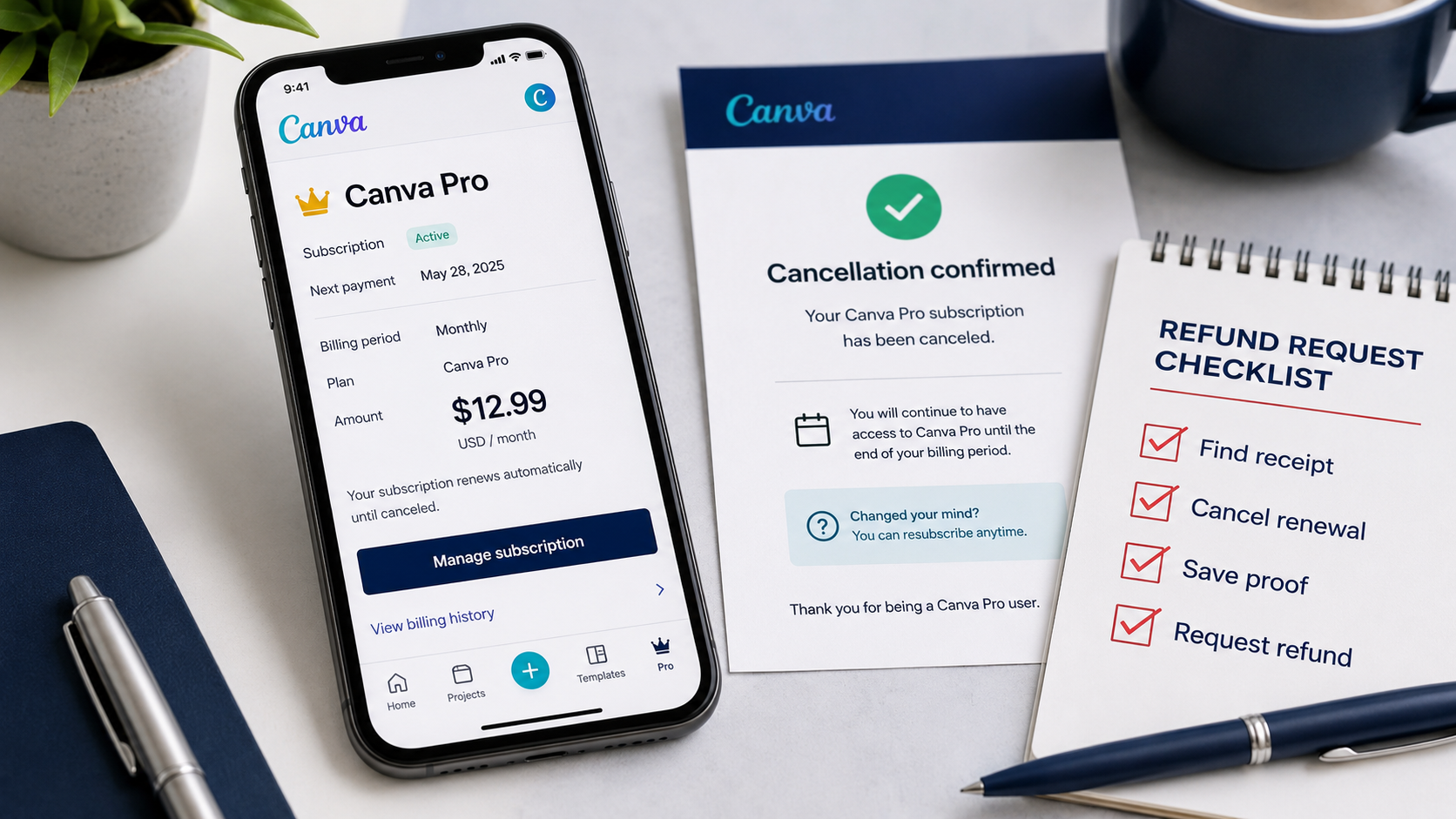
Canva Pro Charged Me After the Free Trial? Refund Guide
Seeing a Canva Pro charge after expecting to pay nothing can be stressful, especially when the payment is for an entire annual plan.
You may have started a free trial for one project, forgotten the renewal date, and then discovered the charge on your card. You may also have cancelled Canva but still received a payment notification.
The first thing to understand is that cancelling a subscription and requesting a refund are two different actions.
Cancelling stops another renewal. It does not automatically reverse a payment that has already been processed.
Canva’s current terms state that a free trial converts to a paid subscription at the end of the trial unless it is cancelled beforehand. Canva also states that subscriptions renew automatically and that cancelling normally does not provide a refund for fees already paid, except where required by law.
That does not mean you should give up. Canva maintains an official subscription-refund process, and Apple and Google Play maintain separate refund systems for purchases processed through their stores.
The correct process depends entirely on who collected your payment.
Fast answer
If Canva Pro charged you after a free trial:
- Identify whether Canva, Apple, or Google Play processed the payment.
- Cancel the active subscription to prevent another renewal.
- Save the invoice, bank charge, cancellation confirmation and account email.
- Submit the refund request to the company that processed the payment.
- Explain honestly that the trial renewed unintentionally.
- Keep the request number and confirmation email.
- Follow up through the same billing provider if no decision arrives.
Do not delete your Canva account before saving your billing information and submitting the request.
Do not assume that deleting the Canva app cancelled the subscription. Removing an app from a phone does not complete the subscription-cancellation process.
What I would do immediately
I would not begin by sending messages to several companies at once.
I would first find the receipt because the receipt tells me who controls the refund.
Search every email account you regularly use for:
- Canva
- Canva Pro
- Canva receipt
- Canva invoice
- Apple receipt
- Google Play receipt
- Subscription renewed
- Payment confirmation
Then compare the receipt with the charge shown in your banking app.
Write down or save:
- The date of the charge
- The exact amount and currency
- The email address connected to the subscription
- The invoice or order number
- The name shown beside the charge
- Whether the plan is monthly or annual
- Whether the subscription is personal or connected to a Canva team
Do not publish these details online. Keep them for the refund form or official customer support.
Step one: Identify who billed you
This is the most important step.
A Canva Pro subscription can be purchased directly from Canva or through an app store. The company that processed the transaction normally controls the refund route.
Route A: Canva billed you directly
Use the Canva route when:
- The receipt came directly from Canva.
- The subscription appears inside Canva’s billing settings.
- You entered your card or PayPal information on Canva’s website.
- The payment is not listed in your Apple or Google Play purchase history.
Submit the request through Canva’s official subscription-refund or support pages.
Route B: Apple billed you
Use the Apple route when:
- The receipt came from Apple.
- Canva appears inside your Apple subscriptions.
- The charge appears in your Apple purchase history.
- You started the trial through the Canva app on an iPhone or iPad using Apple billing.
In this situation, submit the refund request to Apple rather than asking Canva to reverse an Apple transaction.
Route C: Google Play billed you
Use the Google Play route when:
- The receipt came from Google Play.
- Canva appears under Google Play subscriptions.
- The payment appears in your Google Play order history.
- You started the trial through the Canva Android app using Google Play billing.
In this situation, begin with Google Play’s official refund process.
Step two: Cancel the subscription properly
Cancel the plan even when you are already requesting a refund.
This prevents the subscription from renewing again. It also creates a dated record showing when you took action.
Cancelling a Canva-billed subscription
Sign in to the Canva account connected to the charge.
Open your account settings and locate the billing or subscription section. Select the active plan and follow Canva’s cancellation process.
Continue until Canva displays a cancellation confirmation or an expiration date.
Save a screenshot of:
- The plan name
- The cancellation status
- The date access will end
- The account email, when visible
Canva states that subscriptions can be cancelled through account settings. The plan usually remains active until the end of the current billing cycle, and cancellation by itself does not normally refund a completed charge.
Cancelling an Apple-billed subscription
On an iPhone or iPad:
- Open Settings.
- Tap your name.
- Tap Subscriptions.
- Select Canva.
- Tap Cancel Subscription.
- Confirm the cancellation.
Apple states that if there is no cancellation button, or if an expiration message appears, the subscription has already been cancelled.
Cancelling a Google Play subscription
On an Android device:
- Open Google Play.
- Tap your profile icon.
- Open Payments and subscriptions.
- Select Subscriptions.
- Select Canva.
- Choose Cancel subscription.
- Complete the confirmation steps.
Make sure you are signed into the Google account that purchased the subscription. A subscription may not appear when a different Google account is open.
Step three: Save your proof before contacting support
A refund request is easier to understand when the essential facts are together.
Create one folder and save the following items:
Essential proof checklist
- The Canva or app-store receipt
- The charge shown in your bank or payment account
- The subscription page showing the active plan
- The cancellation confirmation
- The email address connected to the account
- The invoice or order number
- The renewal email, when one was received
- Any earlier cancellation confirmation
- The refund-request confirmation
- Every response from support
Hide your complete card number, security code, passwords and private banking information before attaching screenshots.
Support normally needs the transaction details, not unrestricted access to your bank account.
Step four: Request a refund from Canva
Use this route only when Canva processed the payment directly.
Start from Canva’s official subscription-refund page. Sign in to the account connected to the charge.
If Canva directs you to customer support:
- Choose the billing, payments or subscription category.
- Select the refund option.
- Identify the subscription.
- Enter the charge date and transaction information.
- Explain that the free trial renewed unintentionally.
- Confirm that you cancelled the plan.
- Attach the receipt and cancellation proof when requested.
- Submit the request.
- Save the confirmation.
Canva’s terms do not guarantee a refund merely because a customer forgot to cancel. Keep the request factual and respectful. Do not claim the transaction was fraudulent when you originally started the trial yourself.
Refund message example for Canva
Hello Canva Support,
I am requesting a review of an unintended Canva Pro renewal.
I started a free trial using [account email]. On [charge date], my payment method was charged [amount and currency] for [monthly or annual plan].
I did not intend to continue with the paid subscription. I cancelled the plan as soon as I noticed the charge and have attached the receipt and cancellation confirmation.
The invoice or transaction reference is [reference number].
Please review the transaction and let me know whether it is eligible for a refund. I would appreciate written confirmation of the decision and any refund reference provided.
Thank you.
This message works because it includes the facts support needs without exaggerating what happened.
Step five: Request a refund from Apple
Use Apple’s official refund system when Apple processed the Canva payment.
Apple’s current procedure is:
- Sign in to Apple’s Report a Problem website.
- Choose I’d like to.
- Select Request a refund.
- Choose the reason that accurately describes the request.
- Select the Canva subscription.
- Submit the request.
Apple states that some purchases may be eligible for refunds. Apple also states that an initial update on the request can take between twenty-four and forty-eight hours. Approval is not guaranteed, and additional time may be needed for approved funds to reach the original payment method.
When Canva does not appear in Apple’s refund list
Search your email for an Apple receipt matching the amount.
Check:
- Whether another Apple account was used
- Whether a family member made the purchase
- Whether the payment is still pending
- Whether the receipt belongs to a different account
Apple states that a pending charge cannot be submitted for a refund until a receipt has been issued. Apple also advises users with multiple Apple accounts to check each account for the purchase.
Refund explanation example for Apple
Use the closest accurate reason available in Apple’s form.
Where an explanation box is available, write:
I started a Canva Pro free trial and did not intend to continue with the paid subscription. I noticed the renewal charge, cancelled the subscription and am requesting a review of the purchase for a refund.
Do not add claims that are not true. Apple decides eligibility based on the purchase, account, location and applicable rules.
Step six: Request a refund from Google Play
Use Google Play’s official refund workflow when Google processed the Canva purchase.
The general Google Play process is:
- Sign in to the Google account that purchased Canva.
- Open Google Play’s order history.
- Find the Canva transaction.
- Select Report a problem.
- Choose the option that accurately describes what happened.
- State that you want a refund.
- Submit the form.
- Save the confirmation.
Google states that refund eligibility depends on what was purchased, when the purchase occurred, the payment method and the customer’s location. Google’s current guidance states that a refund decision can take between one and four days.
Google also states that for apps, games, in-app purchases and subscriptions, customers requesting a refund within forty-eight hours may be eligible depending on the transaction. After forty-eight hours, Google may direct the customer to contact the developer.
Refund explanation example for Google Play
My Canva Pro free trial renewed into a paid subscription. I did not intend to continue with the paid plan. I cancelled the subscription after noticing the charge and am requesting a review of the purchase for a refund.
Again, a request is not a guarantee of approval.
Step seven: Stop using paid features while the request is reviewed
Canva does not state that stopping use guarantees a refund.
However, when I am requesting the reversal of an unintended renewal, I would stop using paid features while the request is being reviewed. This keeps the situation clear: I am saying that I did not want the paid renewal, and I am not continuing to use the paid service after noticing it.
Do not delete your account immediately.
You may still need access to:
- Billing settings
- Invoices
- Subscription details
- Support messages
- Designs you need to export
- Cancellation evidence
Cancel the billing first. Save the evidence. Submit the request. Consider account deletion only after the billing issue is resolved and important designs have been secured.
Step eight: Track the request
After submitting the refund request, create a simple record.
Save:
- Submission date
- Support provider
- Request or case number
- Transaction number
- Current status
- Last response date
- Any refund reference
- Expected return method
Do not send a new request every few hours.
Repeated submissions for the same transaction can separate the evidence across different support cases. Continue through the original case whenever possible.
Canva refund timing
Canva’s official refund page states that approved refunds can take different amounts of time depending on the payment method:
- Credit cards: five to ten business days
- PayPal: three to five business days
- Other payment methods: up to twenty business days
- eBanx: up to thirty business days
These periods refer to an approved refund returning through the payment system. They do not guarantee that a refund request will be approved.
Apple refund timing
Apple states that an update on a refund request can take twenty-four to forty-eight hours. Approved funds may require additional processing time before appearing in the payment account.
Google Play refund timing
Google states that a refund decision can take between one and four days. The final return time also depends on the payment method.
A real-world example of choosing the correct route
Consider this situation:
You find a Canva charge on your card and remember starting a trial through your iPhone.
You sign in to Canva and see the Pro plan, but your receipt says Apple. Canva appears under your iPhone subscriptions.
The correct process is:
- Cancel Canva under Apple subscriptions.
- Save Apple’s subscription confirmation.
- Open Apple’s Report a Problem service.
- Select the Canva purchase.
- Submit the refund request to Apple.
- Track the request through Apple.
The incorrect process would be repeatedly asking Canva to refund a transaction that Apple processed.
Now consider a different situation:
You signed up on Canva’s website and entered your card directly. The invoice came from Canva, and no Canva purchase appears in Apple or Google Play.
The correct process is:
- Cancel through Canva account settings.
- Save the Canva invoice.
- Use Canva’s subscription-refund process.
- Contact Canva support if directed.
- Track the request through Canva.
The important point is not which device you use now. The important point is which company processed the original subscription payment.
What to do if you cannot find the Canva account
A common problem is seeing a charge but not finding a paid plan in the Canva account you normally use.
Do not assume there is no subscription.
You may have created another Canva account using:
- A different personal email
- A work email
- A school email
- Apple sign-in
- Google sign-in
- Facebook sign-in
- A team invitation
- An email alias
Search every inbox for Canva receipts and trial messages.
Try signing in through the same method used when starting the trial. An account created with Google sign-in may not be the same account you reach by entering another email manually.
Canva also provides an official page for unfamiliar charges and account recovery assistance.
What to do if you cancelled before the charge
This is different from forgetting to cancel.
If you have proof that the subscription was cancelled before the renewal date, save:
- The cancellation confirmation
- The date and time shown
- The scheduled renewal date
- The later charge
- The account email
- The invoice number
In your request, state the timeline clearly.
Message example when cancellation happened first
Hello,
I am requesting an investigation into a Canva subscription charge.
The subscription was cancelled on [cancellation date], before the renewal shown for [renewal date]. Despite that cancellation, my payment method was charged [amount and currency] on [charge date].
I have attached the cancellation confirmation, receipt and transaction information.
Please investigate the billing record and confirm whether the charge will be reversed.
Thank you.
Do not write that you cancelled before renewal unless your evidence confirms it.
What to do if support denies the refund
Read the denial carefully before responding.
The response may explain:
- That the payment was processed by another provider
- That the wrong account was contacted
- That required transaction details were missing
- That the request falls outside the provider’s policy
- That the subscription remained active under another account
- That the charge was for a team or additional seat
- That the refund had already been processed
- That local rules apply
Respond through the existing case with missing evidence or a concise correction.
Appeal message example
Hello,
Thank you for reviewing my request.
I am asking for one additional review because [brief factual reason].
The relevant evidence is attached:
- Receipt or invoice
- Cancellation confirmation
- Transaction reference
- Account email
- Supporting timeline
Please confirm whether the transaction was processed by Canva or another billing provider and whether any additional information is required.
Thank you.
Do not send a long emotional message. A chronological explanation with proof is easier to review.
When to contact your bank
Contact your bank immediately when:
- You did not create the Canva account
- You never started a Canva trial
- Nobody authorized to use the payment method made the purchase
- The card or account information may have been stolen
- Multiple unfamiliar charges appear
- The merchant confirms that it cannot locate the transaction
Tell the bank exactly what happened.
An accidental renewal from a trial you personally started is not the same as a completely unauthorized transaction. Describe the transaction accurately.
When the renewal was authorized through your account but unwanted, begin with the merchant or app-store refund process. When the charge is genuinely unauthorized, use the bank’s unauthorized-transaction process.
Common mistakes to avoid
Mistake one: Deleting the app
Deleting Canva from your phone does not cancel billing.
The subscription must be cancelled through Canva, Apple or Google Play, depending on the billing provider.
Mistake two: Cancelling but not requesting a refund
Cancellation prevents another renewal. It does not automatically send the completed payment back.
Submit a separate refund request.
Mistake three: Contacting the wrong company
Canva cannot directly process every Apple or Google Play refund. Check the receipt before contacting support.
Mistake four: Deleting the account too soon
Deleting the account can make invoices, account details and support history harder to access.
Save the evidence and resolve billing first.
Mistake five: Calling an accidental renewal fraud
When you personally started the free trial, describe the situation as an unintended renewal.
Only report fraud or an unauthorized charge when the transaction was genuinely unauthorized.
Mistake six: Hiding important details
Include the charge date, amount, currency, account email and transaction reference.
Never include your password, complete card number or card security code.
Mistake seven: Continuing to use Canva Pro heavily
If you are asking for a refund because you did not want the paid subscription, continuing to use the paid service makes the request less straightforward.
Stop using paid features while waiting for the decision.
Mistake eight: Sending several contradictory requests
Keep one clear timeline and use the same facts in each communication.
Do not tell Canva one story and the app store another.
Refund request checklist
Before submitting, confirm that you have:
- Identified the billing provider
- Cancelled the correct subscription
- Saved the receipt
- Saved the bank transaction
- Saved the cancellation confirmation
- Found the account email
- Found the invoice or order number
- Written an accurate explanation
- Removed sensitive card details from screenshots
- Saved copies of everything submitted
- Recorded the support case number
Frequently asked questions
Can I get a refund after forgetting to cancel Canva Pro?
You can submit a refund request, but approval is not guaranteed.
Canva’s terms state that the free trial becomes paid unless it is cancelled before the trial ends. The terms also state that cancelling normally does not refund fees already paid, except where required by law. Canva nevertheless provides an official subscription-refund process where users can submit eligible requests.
Does cancelling Canva Pro automatically refund the charge?
No.
Cancellation and refund are separate actions. Cancellation stops future renewal. A completed charge requires a separate refund request.
Should I contact Canva or my bank first?
For an accidental renewal from a trial you started, begin with Canva, Apple or Google Play, depending on who processed the payment.
Contact your bank immediately when the charge is genuinely unauthorized or your payment information may have been compromised.
Can Canva refund an Apple purchase?
Apple controls the refund-request process for purchases processed through Apple. Use Apple’s Report a Problem service.
Can Canva refund a Google Play purchase?
Begin with Google Play when Google processed the purchase. Google may direct customers to the developer after the period covered by its direct refund process.
What if I cannot find the subscription?
Check every email account and every Apple or Google account you use. Search for the receipt and identify which account received it.
Also check whether the Canva plan belongs to a team account rather than your personal account.
What if the charge is still pending?
A pending transaction has not fully completed.
Apple states that a pending Apple charge cannot be submitted for a refund until the receipt is available. For other billing routes, check the provider’s current status and wait for the transaction to complete before submitting transaction details that do not yet exist.
Should I delete my Canva account?
Not before the issue is resolved.
Cancel the subscription, save all billing records, submit the refund request and export anything important first.
How long does a Canva refund take?
For approved refunds, Canva states that credit-card refunds generally take five to ten business days, PayPal refunds take three to five business days, other methods can take up to twenty business days, and eBanx can take up to thirty business days.
Can I request a refund if I already used Canva Pro?
You can still submit a request. Canva or the billing provider decides whether the transaction qualifies.
Do not hide your usage or provide false information.
What if Canva says it already refunded me?
Ask for:
- The refund date
- The refunded amount
- The payment method
- The refund reference or confirmation
Then contact your bank or payment provider with that information if the provider’s stated processing period has passed.
Final advice
The best way to handle an unexpected Canva renewal is to stay calm and follow the payment trail.
Do not begin with a chargeback when you have not identified the transaction. Do not delete the account. Do not send private banking information to unofficial contacts.
Find the receipt, identify the billing provider, cancel the subscription, save the proof and submit one accurate refund request through the official route.
A refund is never guaranteed, but a complete and honest request gives the billing provider everything needed to review the transaction properly.
This article provides general consumer information and is not legal advice. Refund eligibility and consumer rights vary by transaction, payment provider and location.